

Refine Classification and Merge Surfaces
You must classify walls to associate each with its building story before you create a BIM model. Where possible, Merge multiple surfaces to create single objects and optimize the model.
View and Select Surfaces
- After the final page of the wizard, the classified mesh model is displayed.
- To see classifications clearly, select Color for classifications, and if the model has RGB or intensity texture, switch to Solid Color:
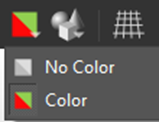 and
and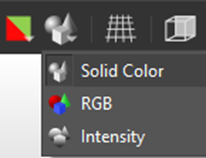
- The model is color-coded by auto planar classification, as indicated in the Classification window in the bottom right, which initially shows the classifications for the Site (the highlighted row):
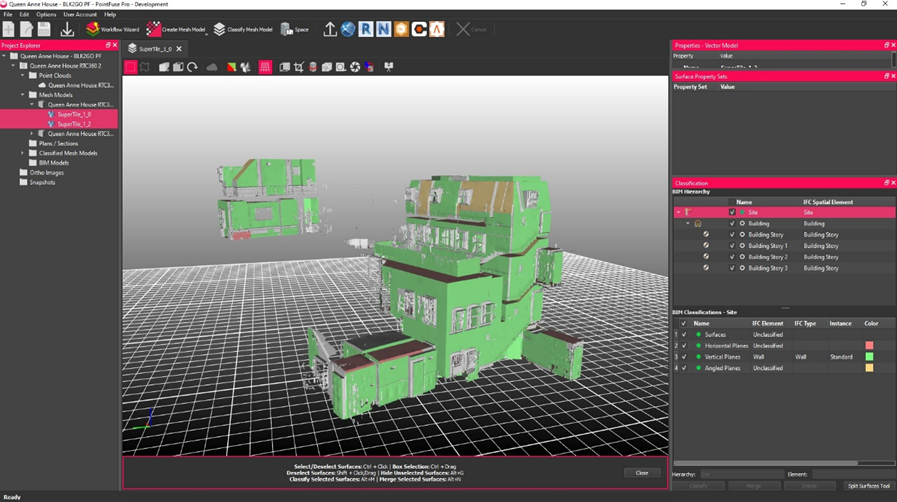
- Select one or more surfaces to classify as a specific element in a specific story:
- Select a single surface: Ctrl+Click.
- Select multiple surfaces:
- Ctrl+Click each surface.
- Click the Split Surfaces Tool button in the Classification panel to use a 3D selection box for splitting surfaces.
- Click Rectangle Select
 and holdCtrl to drag select.
 - Click Polygon Select
 and Ctrl+Click to define nodes of a polygon selection.
- Deselect: Ctrl+Click individually, or from the right click context menu, select Clear Selected Geometries.
Classify and Merge Elements
- Click Classify to classify them, but retaining separate surfaces, or Merge, to merge and classify them.
- In the Classification window, click on the Story and IFC Element:
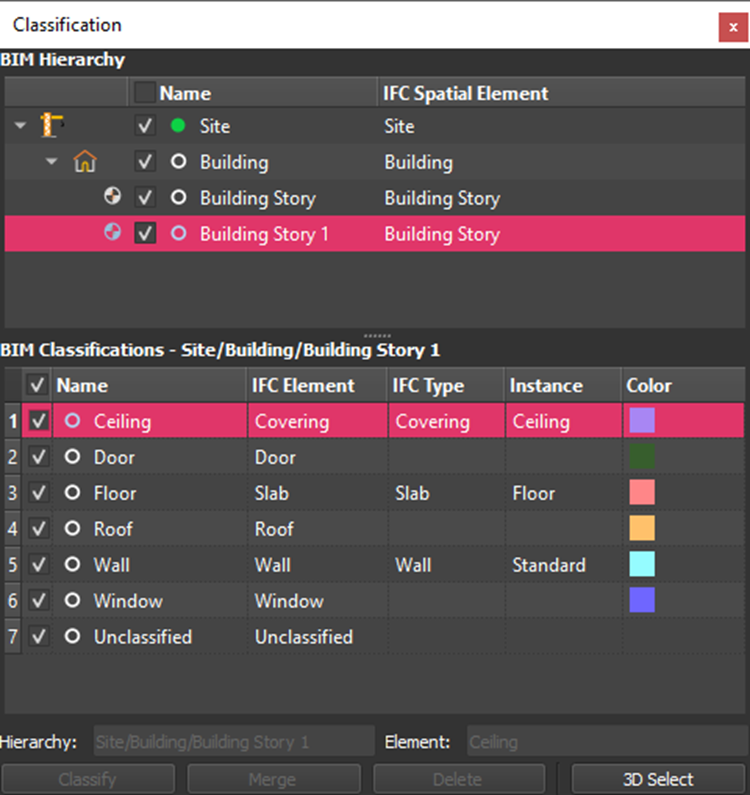
Where possible, Merge multiple surfaces to create a single object. Removing unnecessary segmentation optimizes the model and file size for export. Merging is permanent, so save frequently. - It's useful to have a noise element for people, furniture etc before classifying objects of interest. You can then uncheck that element, to hide it from view. As you classify other elements, you can hide them too:
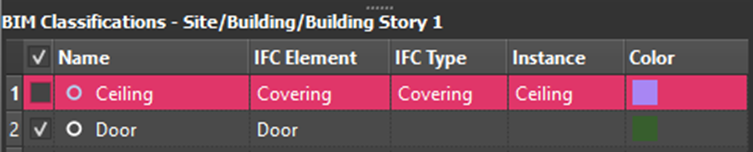
- You can also right click on the selected row and, from the context menu, select to show, hide or toggle that element from all levels.
- Repeat until you have classified all surfaces.
- Click File > Save All.
Surface Flipping
- To optimize the model for virtual reality, select surfaces to flip, so they are front-facing.You use the Surface Flipping Tool
 , described in the User Guide help.