...powered by 
- Support
- Uploading Data
- Uploading\Adding a Spatial Dataset to a Point Cloud Project
Uploading\Adding a Spatial Dataset to a Point Cloud Project
- Select the Point Cloud that you wish to add the dataset to.
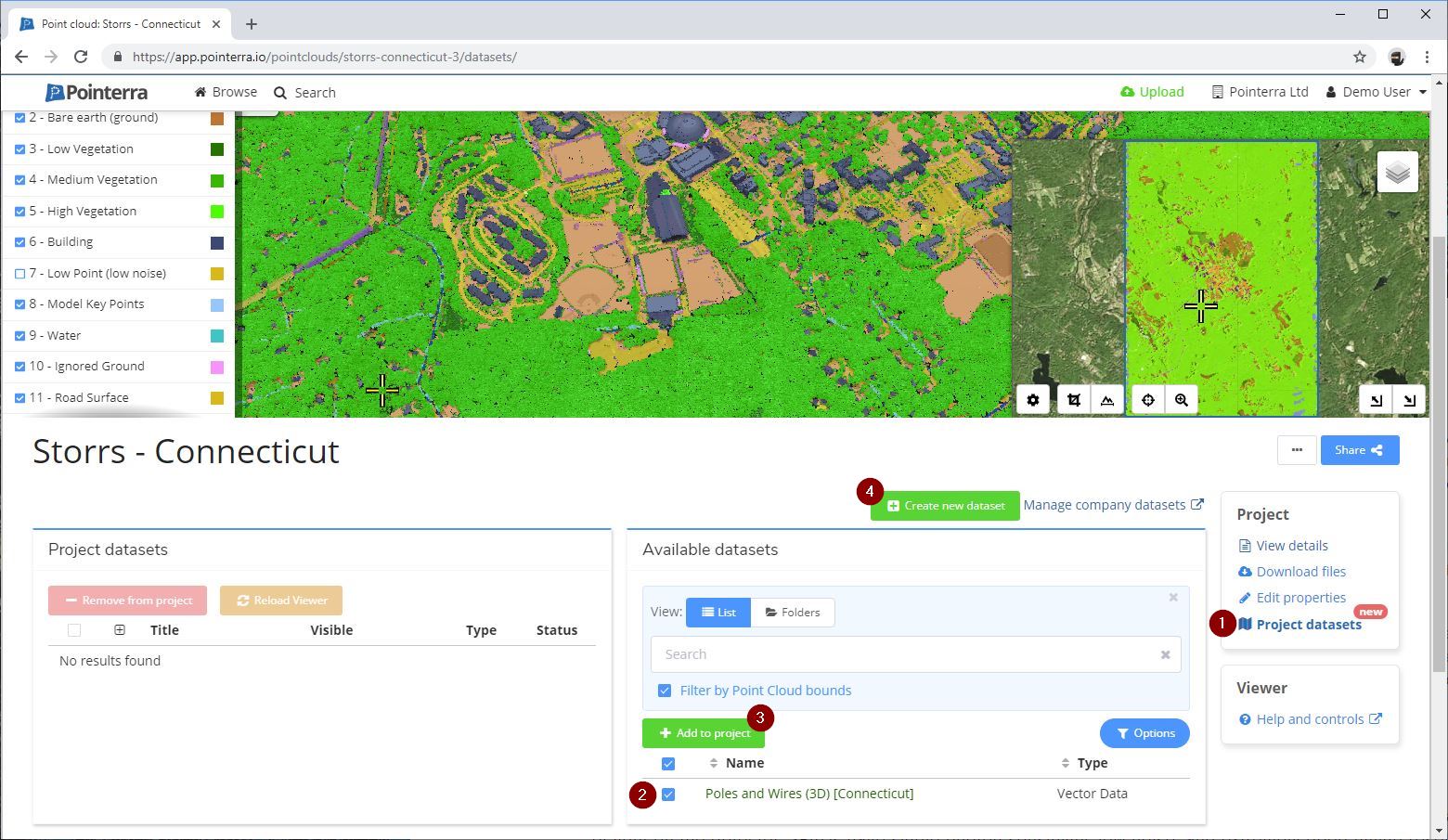
- Scroll to the bottom of the page and select "Project datasets" (1).
- If the Dataset you wish to add has already been upload, select it from the "Available datasets" list (2) and click "Add to project" (3).
- If you want to create a new Dataset click "Create new dataset" (4).
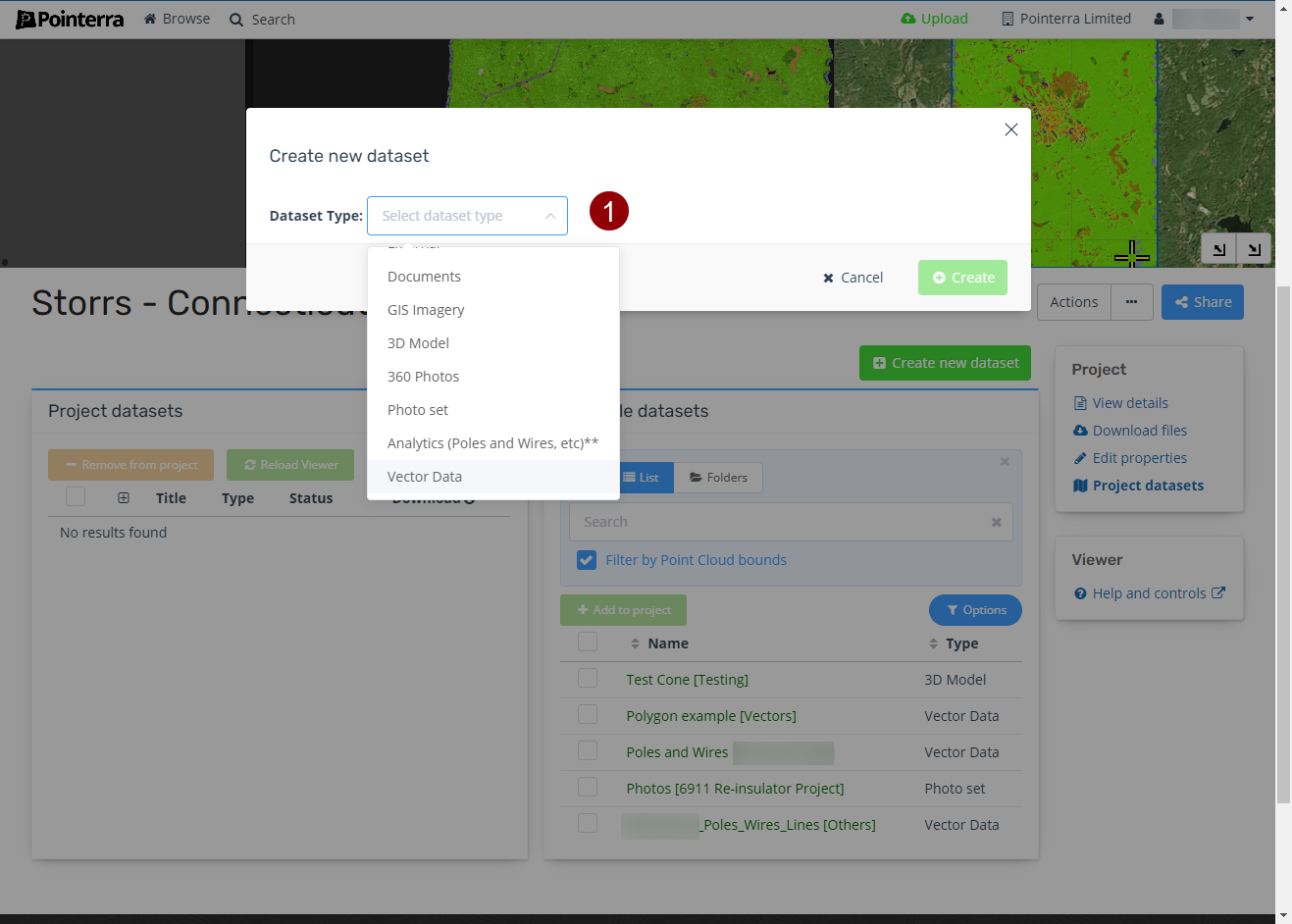
- Select the Dataset Type (e.g. Vector Data) (1). This will show any options that are specific to the Dataset Type.
- Choose a folder to store the dataset in (1).
This can be left as the default (Home) folder but if you have a lot of datasets storing them in folders will make them easier to manage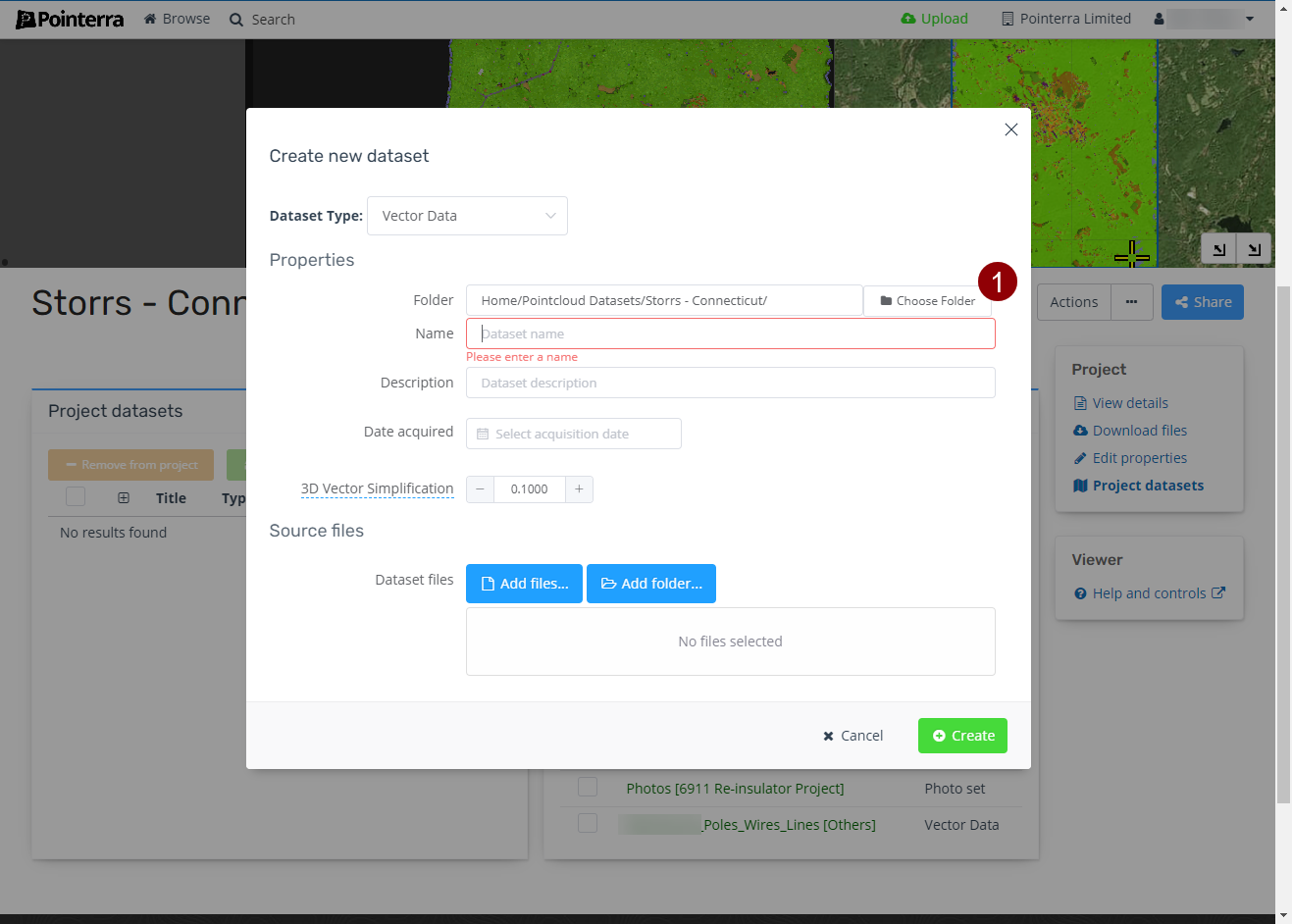
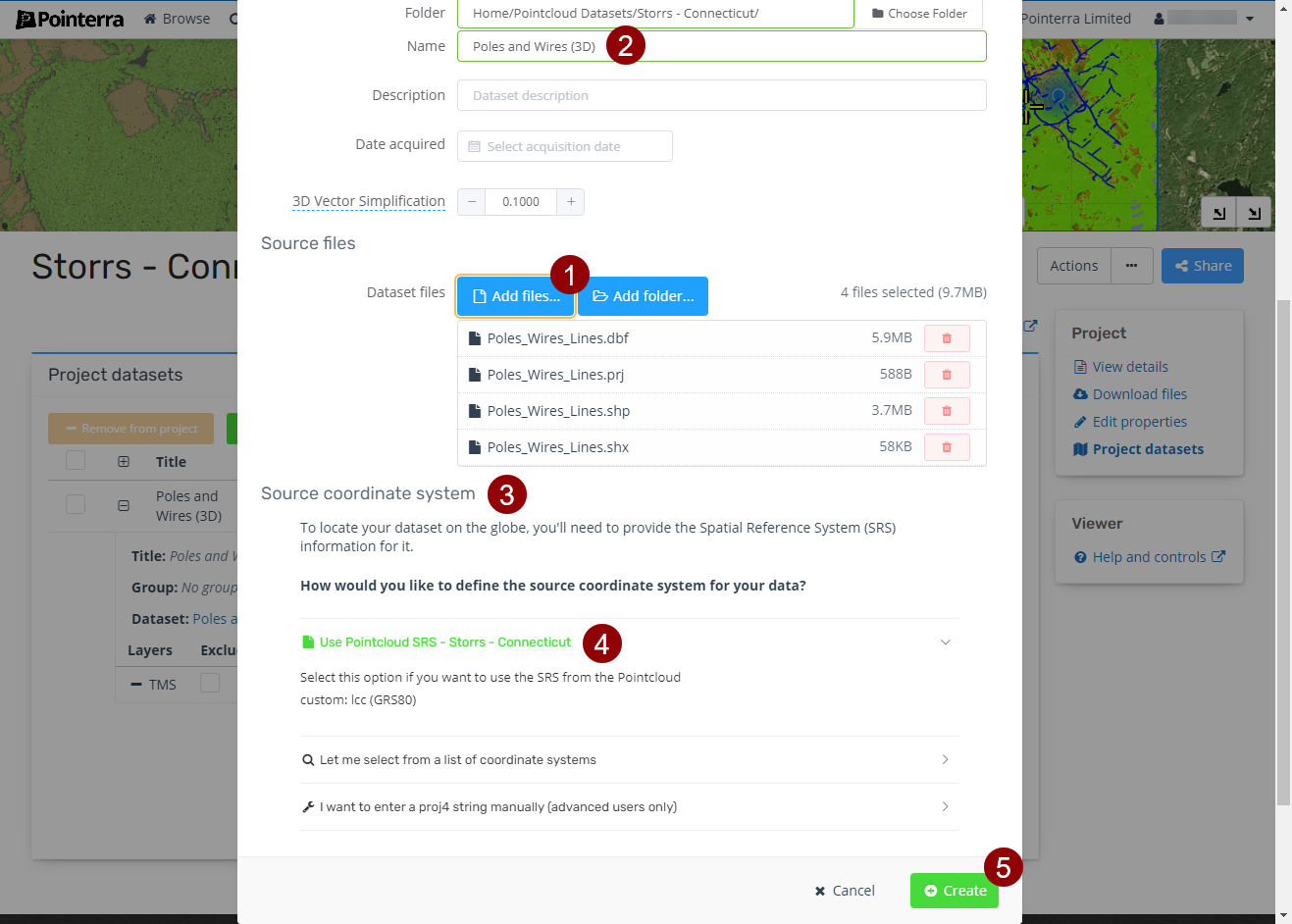
- Select the files you wish to upload either by adding a folder or selecting individual files (1).
- Give the Dataset a Name (2). For some dataset types the name will be automatically be set based on files you selected, this default name can be changed though.
You can also add a description or set date acquired, which are useful for organising\finding your datasets. - Set the Source coordinate system (3).
If it is the same as the Point Cloud select "Use Pointcloud SRS" (4). - Click "Create" to start the upload and import of the dataset (5).
- Once the dataset has been imported, you will receive an email letting you know it is complete and ready to be viewed.